


A video carousel is an interactive website element that lets visitors move through a series of short clips, usually by swiping, clicking arrows, or tapping dots. Each slide carries a single video, often paired with a heading and a short description, so a visitor can explore several ideas in one compact space without scrolling through a long page.
Short videos suit carousels well, because each slide competes for attention with the others. A clip that takes too long to make its point loses the visitor before they swipe to the next one. The challenge is making a set of clips that feel like they belong together, load quickly, and work for every visitor. This article covers what carousel videos are good for, how to keep a set consistent, how to handle accessibility and performance, and how editing makes the whole set easier to produce.
What Carousel Videos Are Good For
Carousels work best when a page has several related things to show, and each can be understood quickly. Common uses include:
Feature highlights. One clip per feature, so visitors can browse the ones they care about.
Customer stories. A series of brief testimonial clips, each focused on a single result or quote.
Product variations. Different products, colors, or use cases, each shown in motion.
Case study snippets. Short previews that lead into full write-ups.
Team or culture intros. Brief clips that introduce people or show how a company works.
How-it-works moments. Short demonstrations of a single action or outcome.
The common thread is one idea per slide. A carousel is a menu of quick ideas, not a place for long explanations.
Editing for Consistency
Because visitors see the clips side by side, small differences stand out. Editing is where a set gets its unity.
Length. Keeping clips close in duration makes the carousel feel balanced and keeps each slide short enough to hold attention.
Opening. Starting each clip on its main subject, not a slow lead-in, gives every slide an immediate point.
Look. A shared color treatment makes separate clips read as one family, even when they were shot at different times.
Text and captions. The same font, size, and placement across clips creates a clean, recognizable rhythm.
Pacing. A similar speed of cutting from clip to clip keeps the experience smooth when someone swipes through several.
Sound. Consistent audio levels prevent one clip from feeling louder or quieter than the next, for visitors who turn sound on.
Designing for How Carousels Behave
Carousels behave differently from a single video on a page, and the edit should reflect that.
Only one clip is active at a time. The visible slide usually plays while the others wait, so each clip should start cleanly and make sense on its own.
Muted playback is the default. Clips should communicate visually, with captions or on-screen text for anything that needs explaining.
First frames matter. The still image visitors see before playback, and while swiping, should be clear and appealing, so a strong opening frame is worth choosing deliberately.
Looping or one-time play. Short, simple clips can loop, while clips that tell a mini story are often better playing once and stopping on a clear final frame.
Mobile first. Many visitors will swipe on a phone, so framing should keep important detail visible on a small screen.
Accessibility and Performance
A carousel is a place where accessibility and speed problems can pile up, since it holds several videos at once.
Controls. Visitors should be able to pause, move between slides with a keyboard, and skip the carousel entirely.
Captions. Accurate captions help visitors who watch without sound, and those who rely on reading.
Reduced motion. Visitors who prefer less movement should be able to turn autoplay off, with the carousel still usable as a set of stills and text.
File size. Several videos on one page add up quickly, so short clips and compressed files keep the page fast.
Lazy loading. Loading later slides only when needed prevents the page from downloading every video at once.
Poster images. A still frame for each slide keeps the carousel looking complete while videos load.
Invideo Editor: Cutting a Set of Short Clips From One Shoot
Producing a whole set of consistent short clips is where editing effort multiplies. Invideo Editor helps by starting from a shared base. Its approach to rough cut editing takes raw footage and a written brief, and an AI agent reviews the on-screen action, delivery, and dialogue, removes unusable material, selects the strongest takes, and assembles an editable base cut. From that timeline, a team can create the shorter versions a carousel needs.
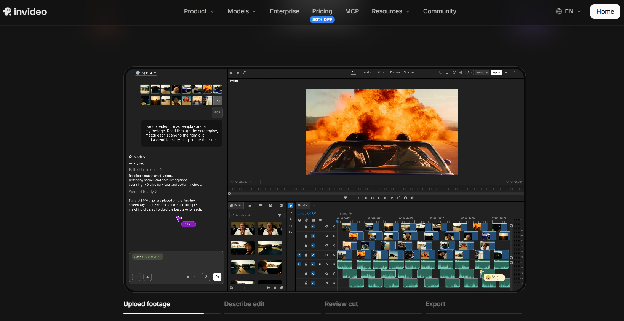
Key features:
- A base cut assembled from raw footage and a plain-language brief, with the strongest takes selected
- Requests such as a faster opening, a shorter middle, or a cut to a target duration, while preserving the context viewers need
- Cut-downs and versions built from the same timeline, such as highlights, trailers, and platform-specific edits, each with its own opening and pacing
- Color grading from a described look or a reference image, with the ability to copy a grade from one clip to others for a shared look
- Titles and captions on the same timeline, so text can be styled consistently across clips
- Audio cleanup and balancing, to keep levels even from clip to clip
- Export in the aspect ratio a placement needs
- Review links, so teammates can comment on a set of drafts without exporting files
For a carousel, the useful part is that clips come from a shared source and a shared look. One interview or product shoot can be cut into several focused clips, each graded the same way and styled with the same text, which makes the set feel designed. The timeline stays open for manual adjustments, so details like the first frame or the final second can be set by hand. The manual timeline is free to use, while the AI agent features run on credits through paid plans.
Common Mistakes to Avoid
Mismatched clips. Different lengths, looks, and text styles make a carousel feel scattered.
Too many ideas in one clip. A slide that tries to say several things says none of them clearly.
Weak first frames. A blurry or unclear still makes visitors less likely to engage.
Sound-dependent clips. Videos that need audio to make sense fail for muted viewers.
Ignoring page weight. A carousel full of large files slows the whole page.
No pause or skip controls. Visitors need control over moving content.
Final Thoughts
A good video carousel feels simple to the visitor and deliberate to the team that built it. Each clip makes one point quickly, and the set looks and sounds like one piece of work.
Most of that consistency comes from editing. Planning the set together, cutting each clip to a clear idea, and giving the whole group a shared look and rhythm turns a handful of videos into an engaging, easy-to-browse part of the page.
FAQ
How long should each carousel video be?
Short enough to make one point and stop. Keeping clips close in length makes the carousel feel consistent as visitors move through it.
Should carousel videos autoplay?
Usually the visible slide plays muted, while others wait. Visitors should be able to pause the video, and those who prefer reduced motion should be able to turn autoplay off.
Do carousel videos need captions?
Yes, in most cases. Many visitors watch without sound, so captions or on-screen text help the message come through.
How do I keep a set of clips looking consistent?
Use a shared color treatment, the same text style and placement, similar lengths, and the same aspect ratio across every clip.
Can I make several carousel clips from one recording?
Yes. A tool like invideo editor can build a base cut from a raw recording, then create shorter versions from the same timeline, and invideo editor can apply one color grade across them for a shared look.


