

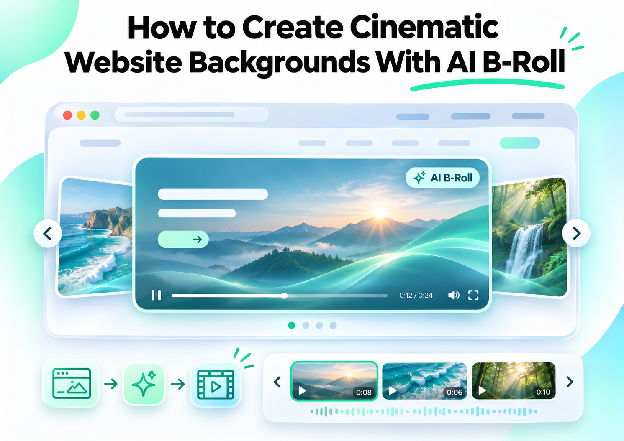
A cinematic website background is a short, looping video, usually behind a hero section or a key content block, that uses film-style camera movement, lighting, and color to set a mood without carrying the main message. It gives a page atmosphere: a slow drift across a city at dusk, soft light moving through an office, or a quiet close-up of a product in its setting.
AI B-roll makes this kind of footage far more reachable. B-roll is the supporting footage that fills in around the main content, and it is exactly what a website background is. Instead of planning a shoot or searching stock libraries for a clip that almost fits, a designer can describe the scene they want and have it generated or sourced. This article looks at what makes a background feel cinematic, how to describe shots so they come out right, and how to make the result work on a real page.
What Makes a Background Look Cinematic
Cinematic is a feel more than a technical setting, and a few qualities create it.
Slow, deliberate camera movement. A gentle push-in, a slow pan, or a steady drift looks intentional.
Depth. A sense of foreground, midground, and background, often with a soft, out-of-focus backdrop, gives the image dimension.
Considered lighting. Warm window light, golden hour, or a moody low-key setup shapes the atmosphere more than any effect.
A cohesive color palette. Footage graded to a limited, harmonious palette looks polished, especially when it echoes the colors of the website.
Space in the composition. A background has to sit behind text and buttons, so good frames leave calm areas where content can live.
Restraint. Cinematic backgrounds are quiet. They support the page instead of competing with the headline.
Why AI B-Roll Suits Website Backgrounds
Backgrounds do not need specific action, recognizable people, or a story. They need atmosphere, and atmosphere is something AI footage generation handles well.
Generated B-roll also removes common obstacles. There is no location to book, no weather to wait for, and no reshoot when the page design changes. A team can try several moods, such as a calm morning scene and a dramatic evening one, and see which suits the brand before committing. Because the footage is made to a description, it can also be tailored to a specific brand, industry, or palette, instead of settling for the nearest stock clip.
Background Ideas by Type of Website
Different kinds of sites suit different kinds of footage.
| Website type | Footage that tends to work |
|---|---|
| SaaS and software | Abstract light, soft gradients, calm workspace scenes, slow movement through clean environments |
| Ecommerce | A product in a lifestyle setting, close-up textures, gentle camera moves around materials |
| Agency or portfolio | Moody light, texture, and shape with a strong, distinctive palette |
| Hospitality and real estate | Interiors, landscapes, and golden-hour exteriors with smooth, steady movement |
| Nonprofit and education | Calm, human-scale environments and natural settings |
When a background includes people, it is worth checking faces and hands closely, since generated footage can look slightly off there. Scenes without people, such as landscapes, interiors, and textures, are often the safest and most flexible.
Making It Work on the Page
A beautiful clip is only useful if the page works around it. A few practical points make the difference.
Text contrast. A subtle dark or light overlay behind the headline keeps text readable over moving footage.
Short, smooth loops. A brief clip that repeats without a visible jump feels seamless and keeps file size down. The same rule applies to short videos in website carousels.
File size and speed. Compressing the video and keeping it short protects load time, which matters for both visitors and search performance.
Poster image. A still frame shown before the video loads keeps the page looking complete.
Muted autoplay. Background videos play without sound, so they should be purely visual.
Reduced motion. Visitors who prefer less movement should see a still image or a way to pause, and the page should work without the video.
Mobile. A cropped or vertical version often suits phones better than a wide clip.
Invideo Editor: Generating and Finishing Background B-Roll
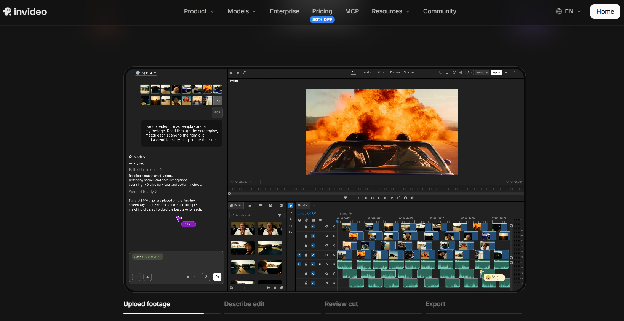
Invideo Editor brings generation and finishing into one project. Its AI b-roll generator lets an AI agent create custom B-roll from a description, using access to 200+ AI models. The clips land on an editable multitrack timeline, where they can be adjusted and refined.
Key features:
- Custom B-roll generated from a detailed description, covering subject, camera movement, lighting, and mood
- Music, and sound effects searchable from inside the editor when an existing clip fits better
- Several shots generated at once, with complex shots handled individually for better control
- Revisions made by describing a change, such as a slower camera move or warmer light
- Color grading from a described look or a reference image, plus LUT support, to give footage a cinematic grade and match a site's palette
- A multitrack timeline for trimming, arranging, and finishing clips by hand
- Export in the aspect ratio and resolution a placement needs, up to 4K
For backgrounds, the color grading step is especially useful. A set of clips generated separately can be graded to share one look, so every section of a page feels like part of the same film. The manual timeline is free to use, while generating B-roll with the agent runs on credits through paid plans.
Things to Check Before Publishing
Artifacts. Watch each clip closely for distortion, flicker, or objects that change shape.
Unwanted text or logos. Generated footage sometimes includes lettering or marks that should not be there.
Brand fit. The mood, palette, and pace should match the brand, not just look attractive.
Usage terms. Confirm what the tool's terms allow for commercial use on a live website.
Page performance. Test load speed with the video in place, and shorten or compress the clip if needed.
Final Thoughts
A cinematic background is about mood, not content. The strongest ones are quiet, slow, and carefully graded, and they leave room for the page to do its job.
AI B-roll lowers the cost of getting there. A designer can describe a scene, adjust it until the feel is right, and finish it with a consistent grade, all without a shoot. The skill that matters most is still taste: knowing when a clip is subtle enough to support a page instead of overpowering it.
FAQ
Can I use AI-generated video as a website background?
Yes, subject to the tool's usage terms. Check the footage carefully for artifacts and make sure it is compressed and short enough for the page.
How long should a background video be?
Short. A brief, seamless loop keeps file size low and feels smoother than a long clip.
Should a background video include people?
It can, but generated people can look slightly off, so check faces and hands. Landscapes, interiors, and abstract scenes are often safer.
How do I keep text readable over a moving background?
Use a subtle overlay behind the text, choose footage with calm areas for content, and keep movement slow.
Can an editor like invideo editor both generate and grade B-roll?
Yes. Invideo Editor can generate or source B-roll, apply a color grade from a described look or reference image, and let you refine clips on a timeline, so a set of backgrounds can share one cinematic look.


